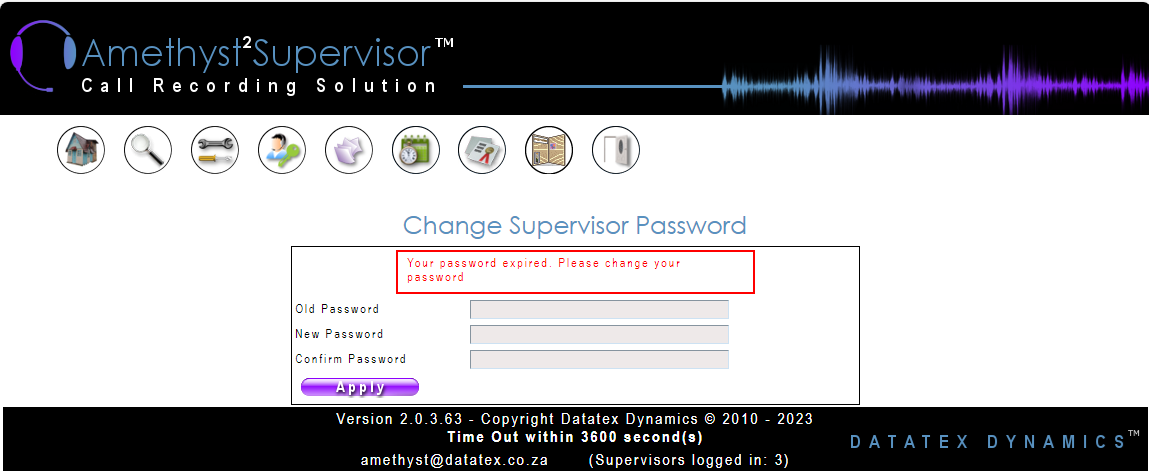
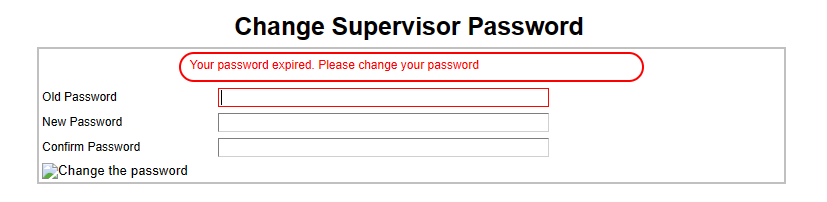
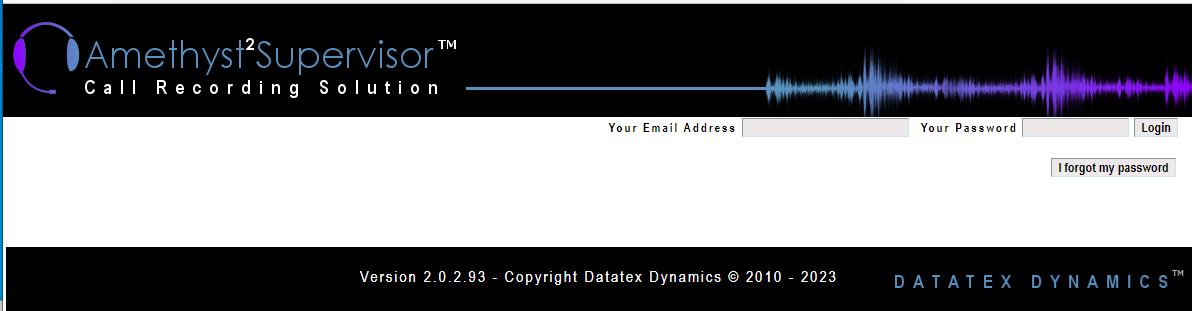
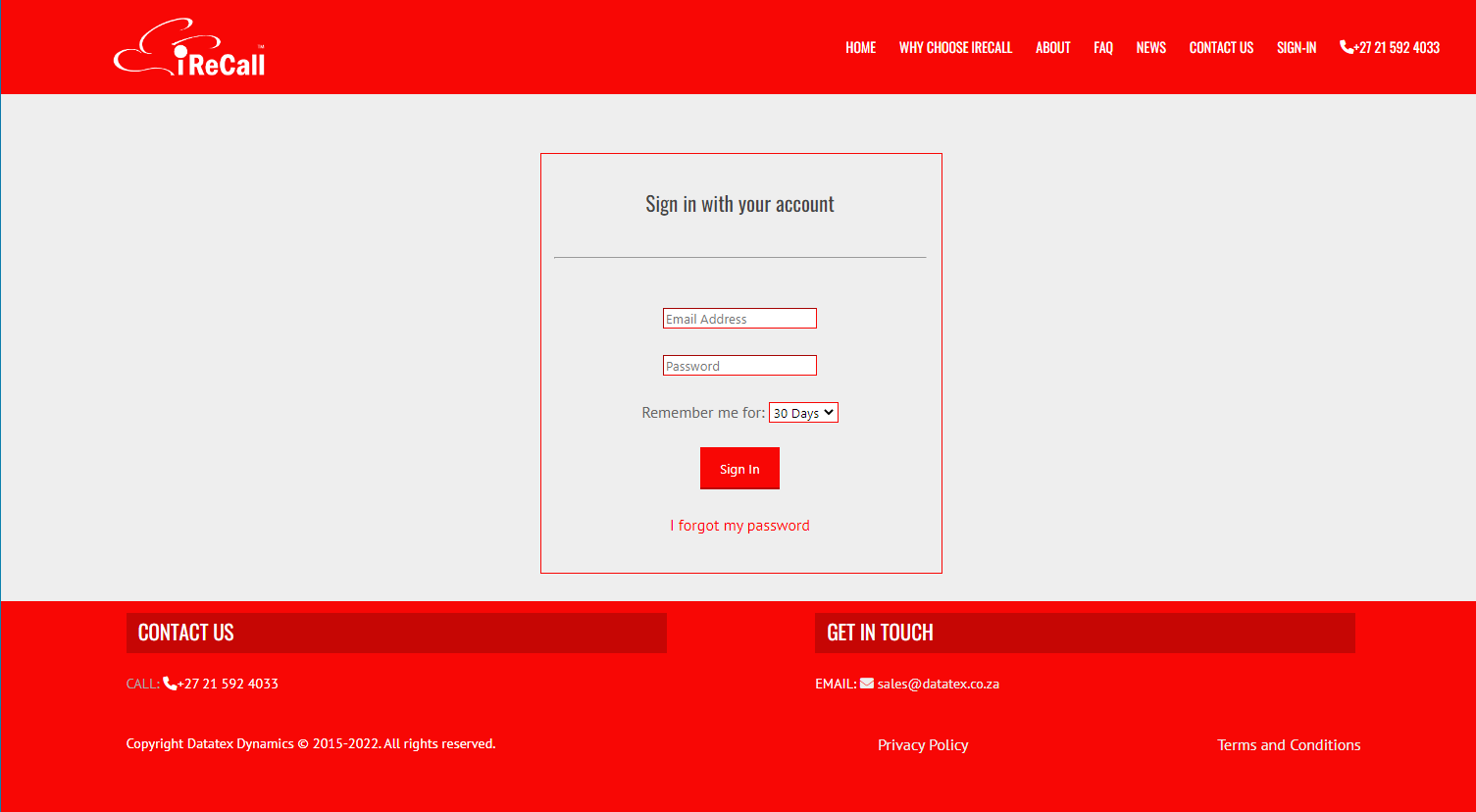
Please before continuing you need to be on the AMETHYST/iRecall Supervisor login page.
See the STEPS section for screenshot with example of the login page. ***
NOTE: Password requirements: (Change as of 2025-06-02)
- Multiple words will be stronger than a single word.
- Password must be at least 16 characters in length. (used to be 10)
- Password must contain at least 1 lower-case letter and a number
- Password cannot have more than 2 consecutive characters repeat the same character. (E.g. “aaBB” is ok, but “aaaBB” is not.)
No longer required. as of 2025-06-02
- Password must contain at least 1 upper-case letter.
- Password must have a maximum of 2 consecutive characters.
AMETHYST2/iRecall has the following options to reset the supervisor password:
1. Supervisor login page: I FORGOT MY PASSWORD link:
-
Things to know:
-
Reply to e-mail address:
- AMETHYST2: The REPLY TO e-mail address configured for the mail server
- iRecall: noreply@irecall.co.za
-
Requirements:
- Supervisor must use the e-mail address as per supervisor login.
- The reset must be done from the same network as the AMETHYST server - unless iRecall client
- Mail server settings must be configured and working - unless iRecall client
- Supervisor reset link is only valid for 24 hours. Request a new link if it was not used with in the required time.
-
Not receiving your mail?
- If the reset link is not received, please check your JUNK mail or SPAM.
- AMETHYST: confirm with mail service provider that the e-mail was not blocked.
For example, MIMECAST blocks it and ask for a password, before allowing our link.
STEPS:
-
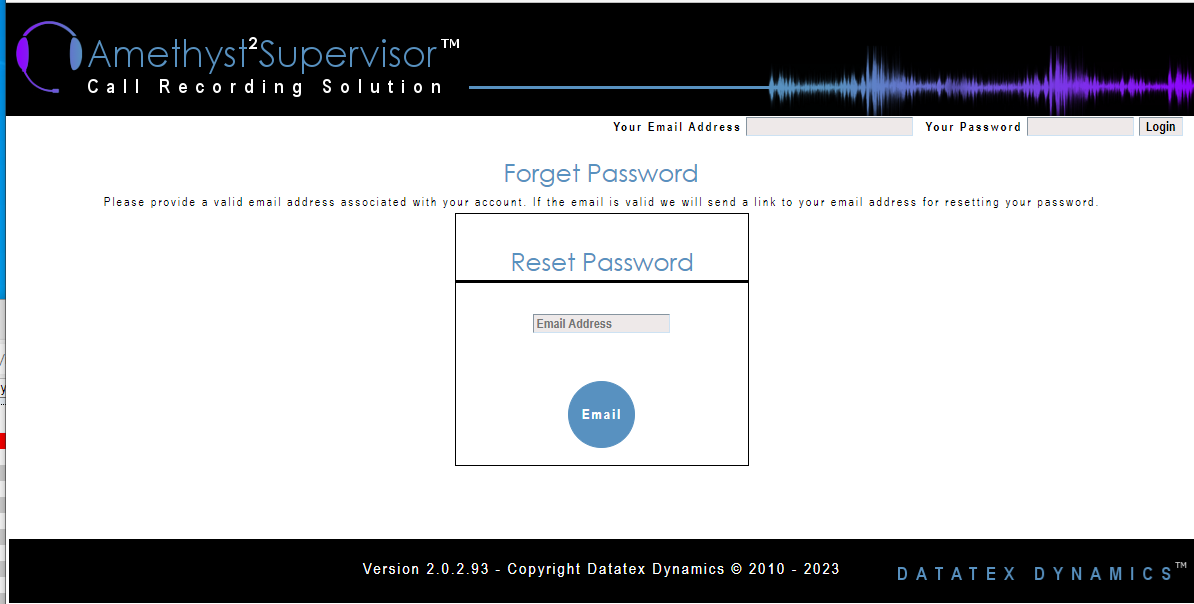
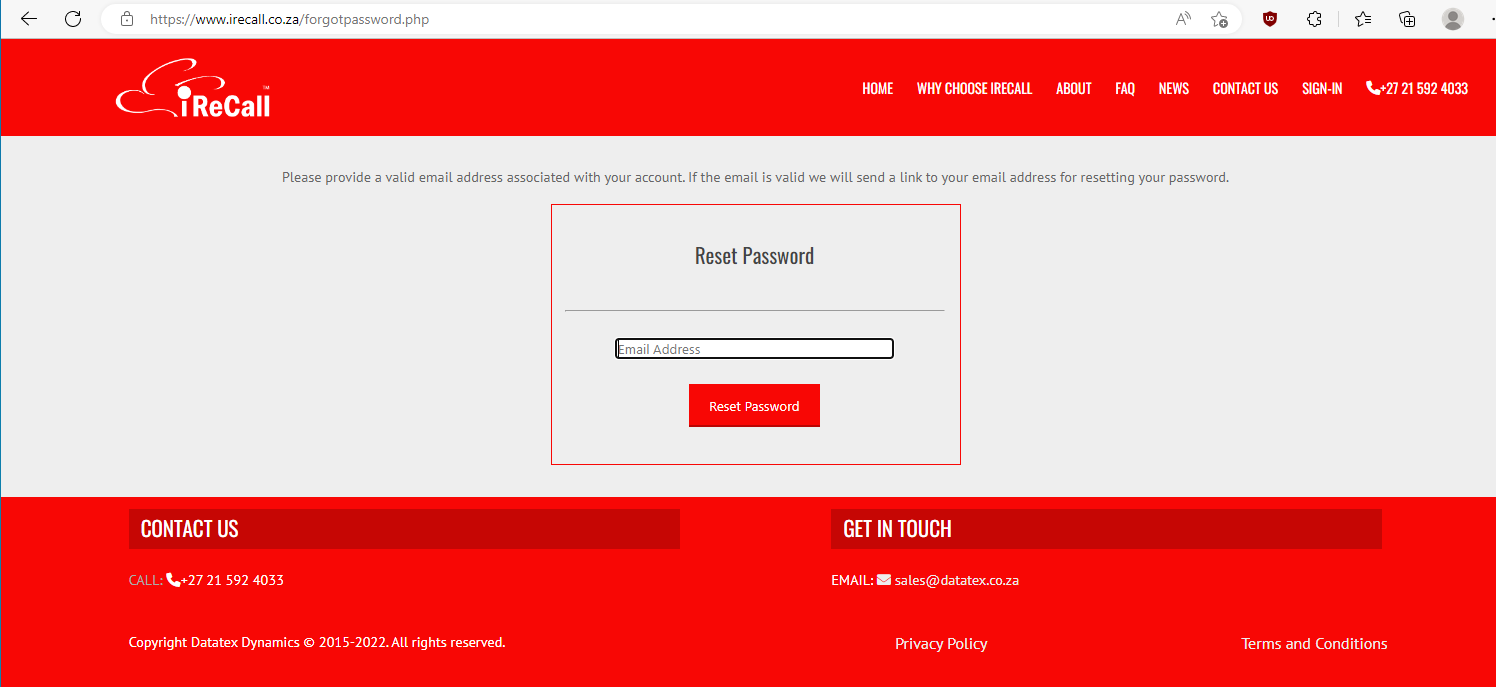
On the login page, before you try to login, select
I forgot my password -
AMETHYST Supervisor2:
-
iRecall Supervisor:
-
Enter the e-mail address and click on the email/reset password icon:
-
AMETHYST2:
-
iRecall Supervisor:
2. AMETHYST2 Supervisor: Manual change of password by Supervisor self:
-
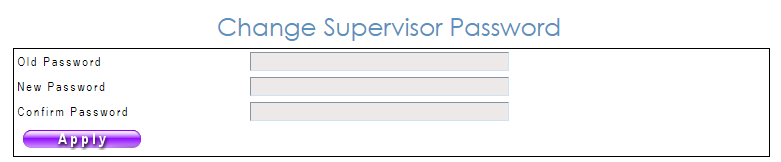
REQUIRED: Old password to be changed
-
Log into Supervisor.
-
Select the Personal Supervisor settings page:

-
Enter the old password, then the new one and confirm it:
NOTE: Upper and lower case required.
3. AMETHYST2 Supervisor: Manual change of password by admin Supervisor.
Note that the Password Change permission is required for this facility to be available.
- Log in as an admin Supervisor.
- Select ‘Administrations’

- Select ‘Administrate Supervisors’.

- Select the required supervisor.
- Enter the new password next to ‘Password’ and click on Apply.